Table of Contents
Preface
It’s been a while since I last used Ubuntu or any other Linux distribution outside of Docker containers, so I decided to give it a go and see if it would be suitable for my everyday needs.
The laptop I chose is my old MacBook Pro A1398, and I went with Ubuntu 18.04 because it’s the latest LTS release. As I suspected, it didn’t work right out of the box, but the problems I had to deal with were rather minor.
Preparation
The most convenient way to install Ubuntu on a MacBook is to download an ISO image from an official website.
Now that we have an ISO file, we need to burn it to a USB drive. After that, turn off your MacBook and turn it on again while holding an Alt key. That way, you’ll be asked to choose a drive you’d like to boot from.
Choose your flash drive. If you have any doubts about which icon represents it, try unplugging it and plugging it back in. This should force the boot menu to display the drive’s icon.
After you boot from your flash drive, you’ll be asked whether you want to install Ubuntu or try it without installing. I’d recommend trying it first because this lets you see what you’re going to get.
It also makes more sense to set up the internet connection before you start the installation process, as this will allow you to download all the system updates and drivers right away.
Wi-Fi Issues
I’ve never had an Ubuntu installation with working network drivers out of the box, even back when Ethernet still required RJ-45, so I wasn’t surprised that the system didn’t recognize my MacBook’s Wi-Fi module.
Luckily, the Bluetooth module was recognized and worked pretty well, so I tethered my laptop to my Android phone’s internet connection. That gave me enough bandwidth for the installer to fetch all the updates and drivers during installation.
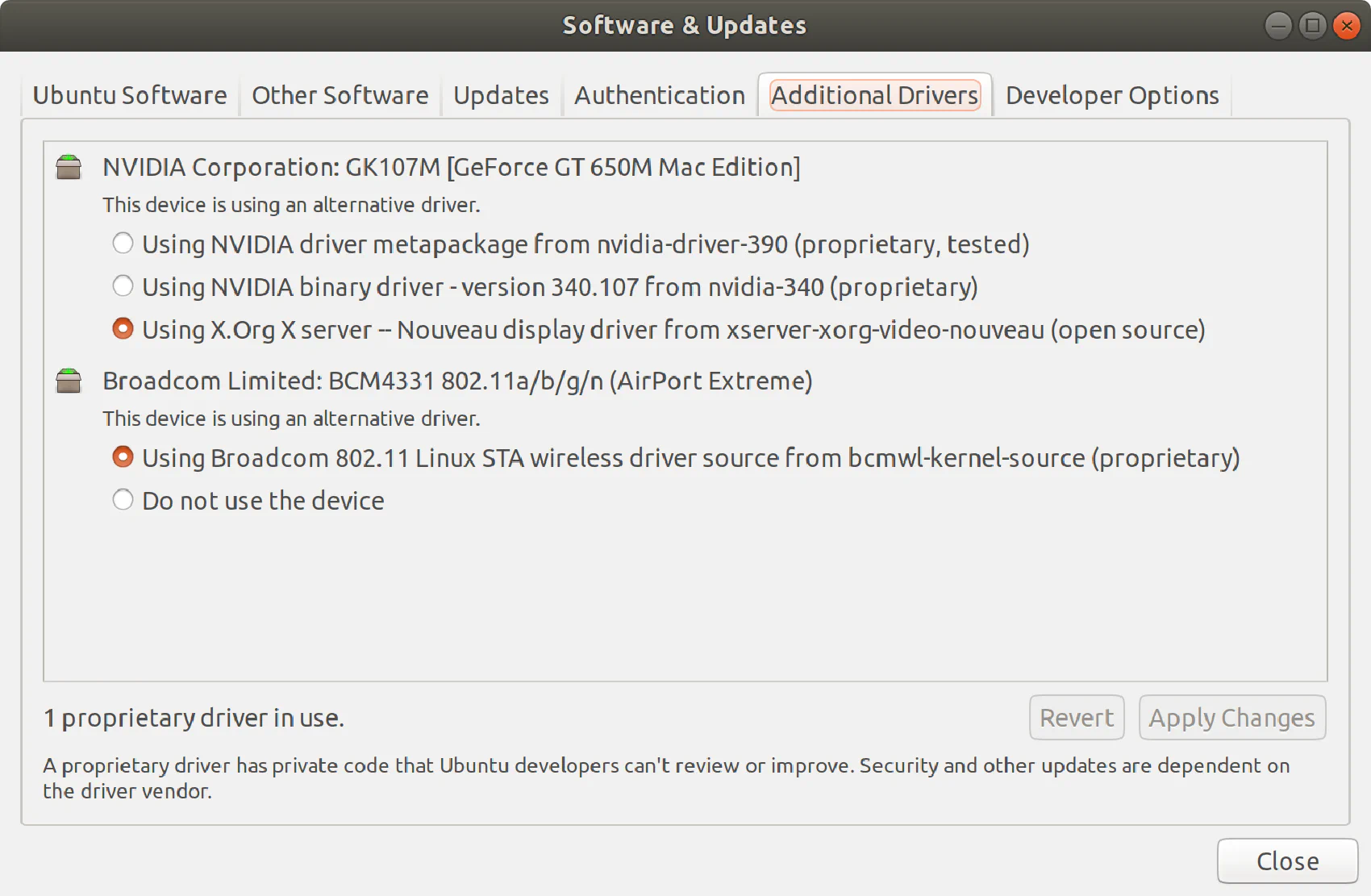
After installing Ubuntu on my laptop, I opened the “Software & Updates” app and clicked the “Additional Drivers” tab. This screen displays all the driver options available for your laptop and allows you to choose the proprietary Broadcom driver, which should let you use Wi-Fi.
Nvidia Driver
After installing the Broadcom driver, I was tempted to try the proprietary Nvidia driver for my video card. Well, it was a grave mistake. The driver seemed to work fine at first, but then I found out that I couldn’t change the screen brightness. This was especially annoying in daylight because the “fixed” value was far below the maximum brightness that my display could produce, so I could hardly see anything on the screen.
Since the default open-source video card driver seemed to work fine, I decided to switch back to it. I pressed “Apply Changes” and rebooted my laptop, but I wasn’t able to boot Ubuntu again! The only thing I saw was a black screen with a message like this:
dev/sda1: clean, n/n files, n/n blocks
To resolve this issue, I had to boot into a console in recovery mode and manually remove the Nvidia driver. The first thing you need to do if you’re in the same situation is to hold the Esc key while booting. Once you reach the terminal, type:
sudo apt-get purge nvidia*
Once I did that, I was able to log into Ubuntu, and my brightness controls seemed to work just fine.
Screen Freeze
I’ve been using Ubuntu for three days, and it seems to be more or less stable, but it has become unresponsive once. I’m not sure whether this was caused by the previous issue with the video driver or whether it was a different issue, but I wouldn’t feel too safe running Ubuntu on a MacBook Pro.
This reminded me how important it is to have an autosave feature enabled in text editors and to back up your data every day.
Conclusion
It’s not that hard to get Ubuntu 18.04 up and running on a MacBook Pro, but you have to be careful with the drivers. Personally, I’m not planning to use Ubuntu on my MacBook, and I’ve already ordered a Dell XPS 13 9380 for that purpose because I think it will be a better fit for Linux.
I wouldn’t recommend using Ubuntu on a MacBook Pro in most cases because the MacBook Pro works much better with macOS, which is a pretty solid system for most tasks.
However, Apple might stop providing OS updates for the MacBook Pro A1398 pretty soon, and that’s where Linux might be a good alternative for keeping the system up to date with software and security updates.